
Imagine sitting on your couch, your favorite movie queued up on your iPhone, but the small screen just doesn’t do it justice. You wish you could share it on your TV for a cinematic experience.
Sound familiar? You’re in luck! The ability to mirror your iPhone to your TV isn’t just a tech-savvy dream—it’s a reality within your reach. By the end of this article, you’ll discover how easy it is to transform your living room into a personal theater.
Don’t miss out on the tips and tricks that will make you the tech guru among your friends. Let’s dive into the simple steps that will elevate your home entertainment experience.
Using Airplay
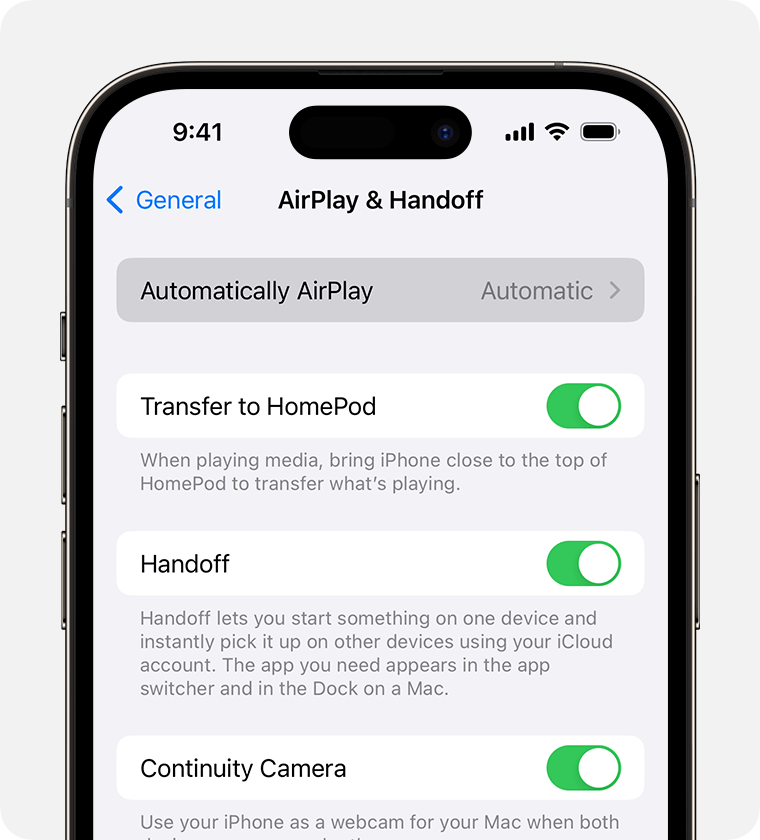
Mirroring your iPhone to your TV can transform your viewing experience, allowing you to enjoy videos, photos, and apps on a larger screen. One of the easiest ways to achieve this is by using AirPlay, Apple’s proprietary wireless streaming protocol. AirPlay lets you seamlessly share content from your iPhone to your TV, making it perfect for movie nights, photo slideshows, or even displaying presentations. But how exactly can you use AirPlay effectively?
How To Enable Airplay On Your Iphone
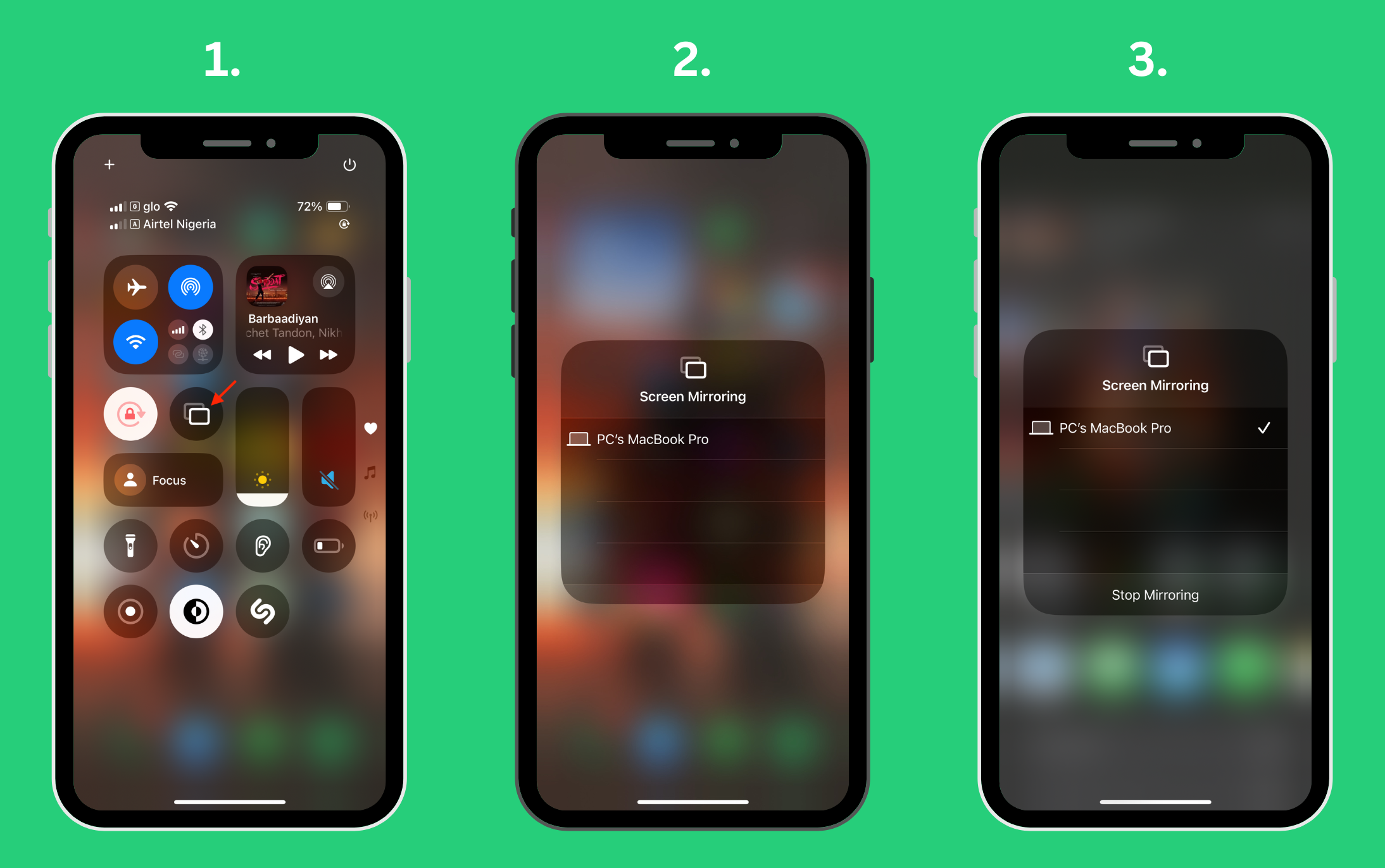
First, ensure your iPhone and TV are connected to the same Wi-Fi network. This is crucial for AirPlay to function correctly. On your iPhone, swipe down from the top-right corner to access the Control Center. Look for the Screen Mirroring option and tap it. Your TV should appear in the list of available devices. Select your TV to start mirroring.
Connecting Your Tv To Airplay
Your TV needs to be AirPlay-compatible, which most modern smart TVs are. If you have an older model, consider using an Apple TV device to enable AirPlay. Once your TV is set up, it’s as simple as selecting it from the list on your iPhone. The connection process usually takes a few seconds, and you’ll see your iPhone’s screen mirrored on your TV.
Common Troubleshooting Tips
Occasionally, you might face issues with AirPlay connectivity. If your iPhone isn’t recognizing your TV, try restarting both devices and check your Wi-Fi connection. Ensure your iPhone is updated to the latest iOS version. Sometimes, a simple reboot of the router can resolve connectivity problems. Are you ready to experience your content on the big screen?
Benefits Of Using Airplay
AirPlay offers more than just screen mirroring. You can share audio to your TV’s speakers, making it ideal for music playback. It’s also a fantastic tool for gaming, as you can play your favorite iOS games on a larger display. Imagine the thrill of racing games or adventure titles on a big screen. What other creative ways can you think of to utilize AirPlay?
Using AirPlay to mirror your iPhone to your TV is straightforward and enhances your multimedia experience. Whether you’re watching videos or sharing a fun moment with friends, AirPlay simplifies the process and makes it more enjoyable. Try it out and see how it can elevate your entertainment setup!

Credit: www.pcmag.com
Connecting With Hdmi Cable
Mirroring your iPhone to your TV with an HDMI cable is straightforward. This method provides a stable connection and high-quality display. You can enjoy your favorite movies, apps, and games on a bigger screen. Here’s how to set it up.
Getting The Right Equipment
First, gather the necessary equipment for the connection. You’ll need an HDMI cable and a Lightning Digital AV Adapter. This adapter connects your iPhone to the HDMI cable. Make sure your TV has an available HDMI port.
Connecting Your Iphone
Plug the Lightning Digital AV Adapter into your iPhone’s charging port. Connect one end of the HDMI cable to the adapter. Plug the other end of the HDMI cable into your TV’s HDMI port. Ensure both connections are secure.
Setting Up Your Tv
Switch your TV to the correct HDMI input. Use your remote to select the input channel you connected the cable to. Your TV should now display your iPhone’s screen. If not, check the connections again.
Adjusting Display Settings
Your iPhone should automatically adjust the display settings. If the image looks wrong, adjust the resolution. Go to your TV’s settings and select the best resolution for your display.
Enjoying Your Content
Now, you can enjoy your content on the big screen. Play videos, launch apps, or browse the web. Everything you do on your iPhone will appear on your TV. Experience the ease of a larger display.
Third-party Apps And Devices
Mirroring your iPhone to a TV can enhance your viewing experience. Third-party apps and devices provide versatile options. These solutions can be useful if native options are limited. They offer flexibility, supporting various TV models. Many apps are user-friendly, making setup simple.
Popular Third-party Apps
Several apps can assist in mirroring your iPhone to a TV. Reflector and AirBeamTV are popular choices. Reflector works well with multiple devices. AirBeamTV offers compatibility with several TV brands. Most apps require installation on both devices. They often use Wi-Fi for connection.
Streaming Devices
Devices like Roku, Chromecast, and Fire TV are effective. They provide seamless streaming from iPhone to TV. Setup involves connecting these devices to your TV. A dedicated app on your iPhone completes the process. These devices support high-quality video and audio.
Compatibility Considerations
Not all third-party options work with every TV. Check compatibility before purchasing a device or app. Some apps may not support older TV models. Streaming devices usually list supported brands. Ensure your TV and device are compatible for smooth mirroring.
Ease Of Use
Third-party solutions often simplify the mirroring process. They offer easy setup and user-friendly interfaces. Many apps provide step-by-step guides. Devices usually come with comprehensive instructions. This makes mirroring accessible to all users.
Cost Factors
Third-party solutions range in price. Some apps are free, others require a purchase. Streaming devices vary in cost. Consider your budget when choosing a solution. Ensure the features meet your needs before buying.
Credit: support.apple.com
Credit: cardtonic.com
Conclusion
Mirroring your iPhone to your TV is straightforward. Many options are available. Choose the one that suits your setup best. You can use a cable or wireless method. Both have their benefits. Ensure your devices are compatible. This enhances your viewing experience.
Enjoy photos, videos, and apps on a bigger screen. Troubleshooting tips can help if issues arise. With these simple steps, you’re ready to start mirroring. Have fun exploring your iPhone’s content on your TV. It’s a great way to share moments with family and friends.
Happy viewing!